
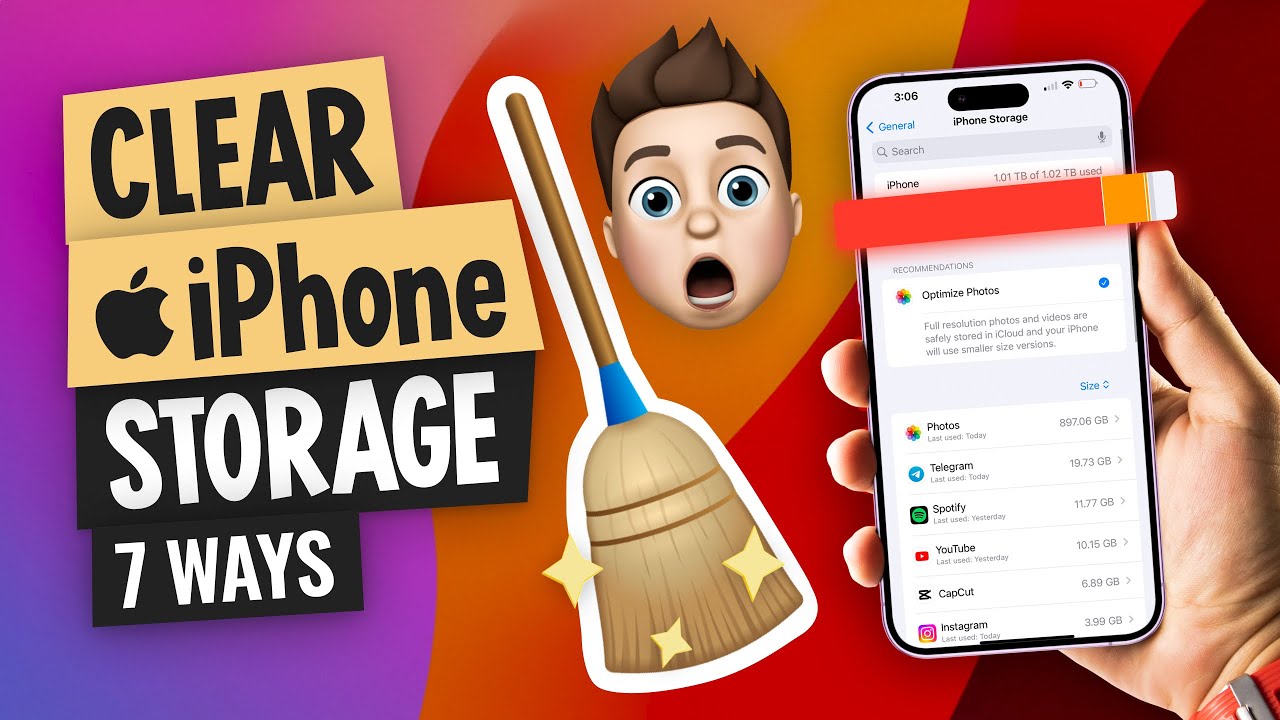
If your iPhone is running slow or you see a storage warning, you’re not alone. Over time, photos, videos, apps, and cached data can fill up space, leaving you with fewer options and less speed. This guide focuses on practical, easy-to-follow steps to how to clear up storage on iphone without sacrificing essential data. By the end, you’ll have a cleaner, faster device and a clearer sense of what’s taking up space.
Start with a quick storage audit
Begin by opening Settings > General > iPhone Storage. This dashboard provides a color-coded overview of space usage and a list of apps with the amount of storage they consume. Look for patterns: large photo libraries, unused apps, long video downloads, or documents stored by stubborn apps. The “Recommendations” section often suggests targeted actions like offloading unused apps or automatically reviewing large attachments. A clear audit can guide your cleanup plan and prevent random deletions that you might later regret.
Tidy up photos and videos
Photos and videos are typically the largest culprits. If you use iCloud, enable Photos in iCloud Settings and choose “Optimize iPhone Storage” so full-resolution media stays in iCloud while thumbnail copies remain on your device. Regularly review your “Recently Deleted” album to permanently remove items after the 30-day retention window. Consider exporting important memories to a computer or external drive and then removing them from the device. For many users, optimizing photos alone yields a noticeable boost in available space.
Manage messages and attachments
Messages can accumulate a surprising amount of data—text, photos, and videos—especially in group chats. In Settings > Messages, consider keeping messages for 30 days or 1 year, rather than forever. Within conversations, delete large attachments you no longer need. You can also search for large attachments by going to Messages > search for attachments and removing the heavy files selectively. A thoughtful pass through conversations can free up substantial storage without affecting the most important conversations.
Offload apps and clear caches
Offloading unused apps keeps the app data intact so you can reinstall later without losing progress. In Settings > General > iPhone Storage, enable “Offload Unused Apps.” This feature removes the app itself but preserves its documents and data. For apps you still use but that store a lot of cache, manually review their internal storage settings or clear caches if the option exists. Browsers like Safari let you clear history and website data to reclaim space, and many third-party apps offer in-app cache clearing as well.
Review large files and cloud backups
Check the Files app and third-party file storage apps for large documents and media. Move sizeable items to cloud storage services or transfer them to a computer. If you rely on iCloud, periodically review your backups and keep only necessary device backups. Removing outdated backups can free a surprising amount of space, especially on devices with limited capacity.
Keep your system lean
Operating system updates can add new features but also temporary cache files. Ensure you install the latest iOS version, then run a cleanup to remove temporary files and caches created during updates. Regular, light maintenance—monthly or quarterly—helps maintain peak performance. If you want a reliable, longer-form walkthrough of these steps, you can read more here: how to clear up storage on iphone.
For more practical tech insights and guides, visit Techro Lab.
 Admin
Admin