
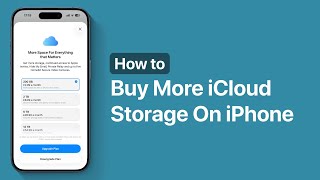
In today’s digital world, backing up photos, documents, and app data in the cloud helps keep devices fast, private, and resilient. If you’re running out of space on iCloud, a quick upgrade can save you headaches and prevent backup failures. This guide covers practical steps for how to buy more icloud storage/ and explains how to choose the right plan for your needs.
Why you might need more iCloud storage
Most households start with the 5 GB free tier, which fills up quickly with photos, videos, app data, and document backups. If you rely on iCloud for device backups, Photo Library syncing, and Drive-like storage across devices, you’ll likely see space warnings. Upgrading preserves automatic backups, seamless syncing, and shared access without having to delete important files. With multiple devices—iPhone, iPad, Mac, and even Windows via iCloud for Windows—larger storage helps keep everything in one secure place.
Understand the available plans
Apple keeps storage simple with a few tiered options. Common plans include 50 GB, 200 GB, and 2 TB. Prices vary by region, but you’ll typically pay a small monthly fee. If you use Family Sharing, the 200 GB or 2 TB plans can be shared with family members, which often provides better value per person than separate accounts. If you’re mainly uploading photos, a larger tier also lets you keep full-resolution backups instead of relying on device-optimized versions that save space but reduce quality.
Step-by-step upgrade process
On iPhone or iPad: open Settings, tap your name, select iCloud, then Manage Storage or iCloud Storage, and choose Buy More Storage or Change Storage Plan. Confirm with your Apple ID password. On a Mac: click the Apple menu > System Settings (or System Preferences) > your Apple ID > iCloud > Manage or Buy More Storage, then select a plan and confirm. On Windows: open iCloud for Windows and go to Storage to upgrade. The process typically includes reviewing the plan, confirming payment, and enabling automatic renewal for ongoing access.
Before upgrading, take a quick inventory of what’s consuming space. Go to Manage Storage to see iCloud Drive contents, app data, and device backups. You can offload old backups, delete unused apps, or enable iCloud Photos’ optimization settings to control local storage usage while preserving full copies in the cloud. This preparation helps you pick a plan that fits actual needs rather than anticipated growth.
Tips to optimize value and avoid wasted space
- Enable iCloud Photos in High‑Quality or 2x/Original Quality, depending on your storage and bandwidth preferences.
- Set backups to only essential devices and apps, removing duplicates and outdated data.
- Archive older documents to local storage or another cloud service if needed, while keeping active files in iCloud Drive.
- Consider annual billing or promotional offers where available to reduce monthly costs (note that availability varies by region).
Where to learn more
For a detailed walkthrough you can follow later, click how to buy more iCloud storage and explore steps with screenshots and region-specific notes. This resource links directly to official steps while offering practical tips for everyday usage.
Also, if you want more technology guides and tips, visit the Technoloss homepage for related articles on cloud storage, backup strategies, and digital hygiene. These resources help you stay organized and secure online.
Bottom line
Upgrading iCloud storage is a straightforward way to protect memories and important data without juggling files across devices. By understanding the plans, following clear upgrade steps, and applying smart storage hygiene, you’ll enjoy a smoother experience across all Apple devices while keeping your data safe and accessible.
 Admin
Admin